
2.3 KiB
Open a graph file for editing
You can open a graph file from multiple locations, depending on the graph type and its source type.
Project window
To open a graph for editing from the Project window:
-
(Optional) If your Project window isn't already open, go to Window > General > Project, or press CTRL + 5 (macOS: Cmd + 5).
-
Find the location in your Project window's folders where you saved the graph file you want to edit.
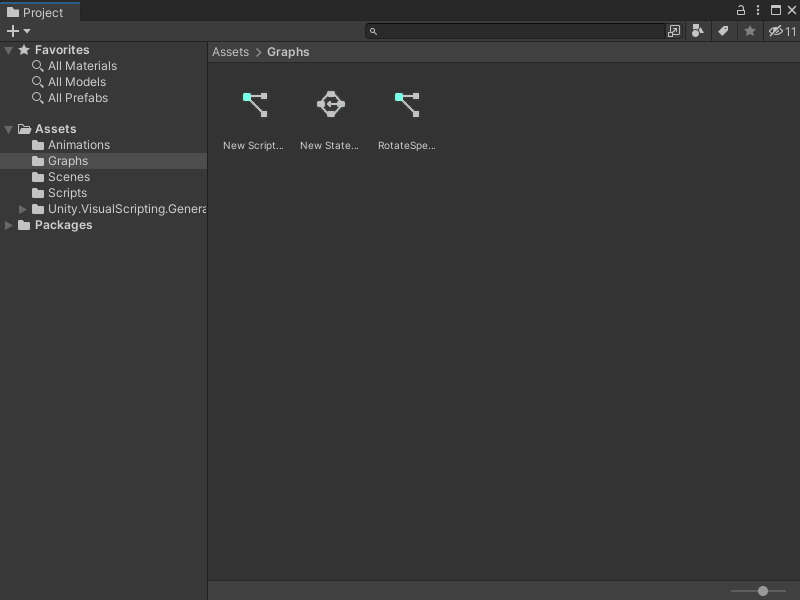
-
Double-click the graph file to open it in the Graph window.

From the Graph Inspector
If you have a nested or embedded graph inside another graph file, you can open it for editing from the Graph Inspector.
-
In the Graph window, select the node that represents the graph you want to edit. This node could be a transition, Super State, Subgraph, or State Unit.
-
In the Graph Inspector, select Edit Graph. The graph opens in the same Graph window for editing.
Tip
If the Graph Inspector isn't visible in the Graph window, select Graph Inspector (
) from the toolbar.


From a Script Machine or State Machine
If you've attached or embedded a graph in a Script Machine or State Machine on a GameObject, you can open the graph for editing from the Inspector window:
-
In the Editor's Hierarchy window, select the GameObject that has the Script Machine or State Machine with the graph you want to edit. If the Hierarchy window isn't visible, go to Window > General > Hierarchy or press CTRL + 4 (macOS: Cmd + 4).
-
On the Script Machine or State Machine component, select Edit Graph.

Next steps
After you open your graph file, you can add a node to your graph. For more information on how to add a node to a Script Graph, see Add a node to a Script Graph.
For more information on how to edit a State Graph, see Developing logic transitions using State Graphs.